Administration Overview
Opening Pneuron Administrator
After starting the Pneuron and web servers, you can start Pneuron Administration.
- Open a web browser.
-
In the address field, type the location of the web server port, followed by the name of the Pneuron Administration directory you created during the installation process (such as “/Admin”). If the web server is installed on a remote machine, enter the IP address or hostname of the web server and associated port, such as http://192.168.10.197:8080/Admin. If the web server is installed on the local machine, enter the localhost port number and name of the Pneuron Administration directory you created during installation, such as http://localhost:8080/Admin.
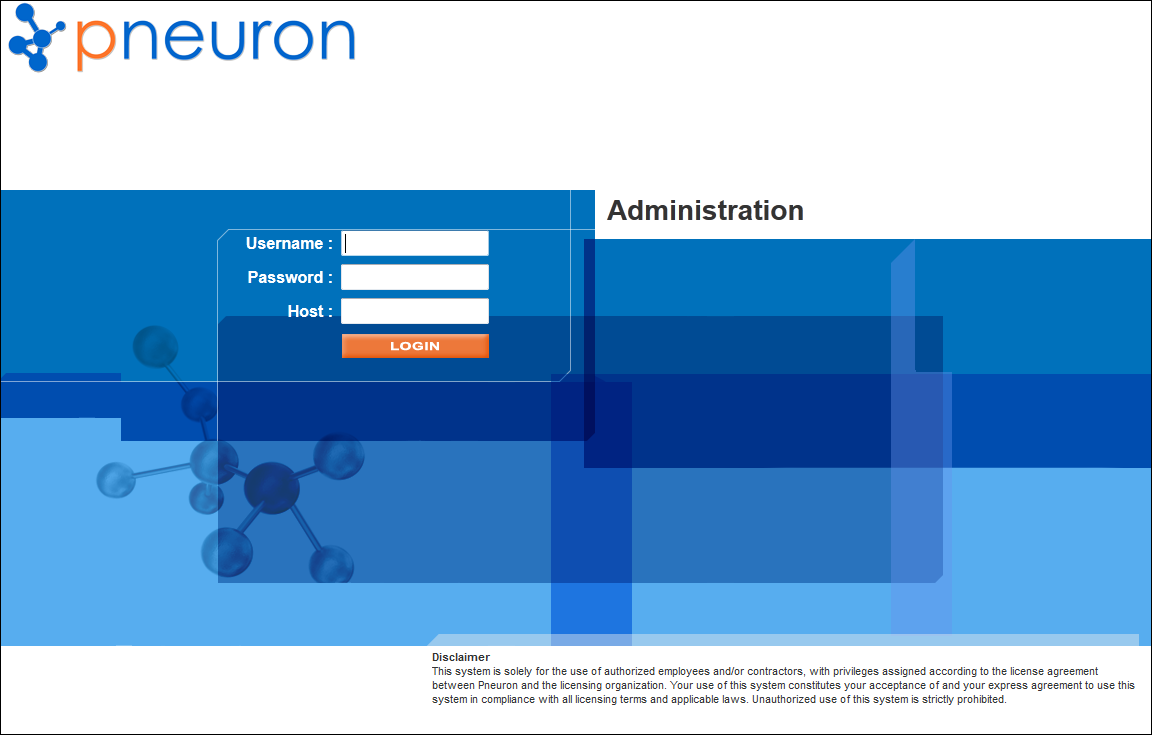
The Pneuron Administration Login screen appears.
-
Enter your User name, Password, and Host name for Pneuron Administration. Then click Login. The Pneuron Administration User Management page appears.
Pneuron Administration Overview
The Pneuron Administration™ module is part of the Pneuron Applications Suite, which consists of Pneuron Design Studio™, Pneuron Administration™, and Pneuron Enterprise Control Manager™ (ECM).
The Pneuron Administration application enables administrators to:
- Create Pneuron users
- Control access and authorization
- Configure user privileges
- Create and manage groups
- Set up host servers and their properties, virtual machine realms and their properties
- Define aliases for connecting to data sources, file systems and other locations
Pneuron Administration can also be used to configure data sources and pre-defined SQL queries used for graphs and charts (widgets) to be displayed in the Pneuron Enterprise Control Manager™ (ECM).
The Pneuron applications run on a web server and operate as a thin client configuration.
Overview of the Security and Access Model
Pneuron has implemented a flexible, configuration-based model to meet the different security and information access requirements of organizations and users.
There are two fundamental access concepts applied in the Pneuron Administration™ module:
-
Privileges – Privileges represent individual atomic actions that users can perform within the Pneuron application. Privileges are fine grained and are associated with all atomic operations within the Pneuron Application. Examples of privileges include the ability to view, modify, add, or delete Pneurons.
-
Information Access – Information Access defines permissions for user access to resources and artifacts that are configured in the Pneuron applications. Examples of information access include permissions to access and operate on Pneuron networks or projects, data sources, and dashboards.
By combining privileges and information access, Pneuron provides enterprise users flexible and secure access to all elements within the application.
Pneuron Administration supports two models for managing privileges:
-
Roles-based privileges – Roles represent a collection of privileges. By utilizing roles, the setup and management of users is streamlined, and Pneuron administrators can ensure overall consistency across multiple members.
-
User-based – Individual users can be configured with a set of explicitly defined privileges.
Pneuron provides three default, pre-configured users and roles for the Administration, Design Studio, and Enterprise Control Manager applications. The default roles are: - Admin – This role has all privileges associated with the Administration application and across the Design Studio and Enterprise Control Manager applications. The Admin role is used to set up users within the application. - Net Designer – This role has all privileges associated with the Design Studio application. - ECM Designer – This role has all privileges associated with the Enterprise Control Manager application.
When configuring a user’s permissions, the administrator can assign privileges directly to the new user or assign a role. If the administrator selects a default role and then proceeds to modify the associated permissions, the system will prompt the administrator to save the existing configuration as a new role (the default roles cannot be modified). The role and user-based privilege configuration within the Pneuron Administration application is displayed below.
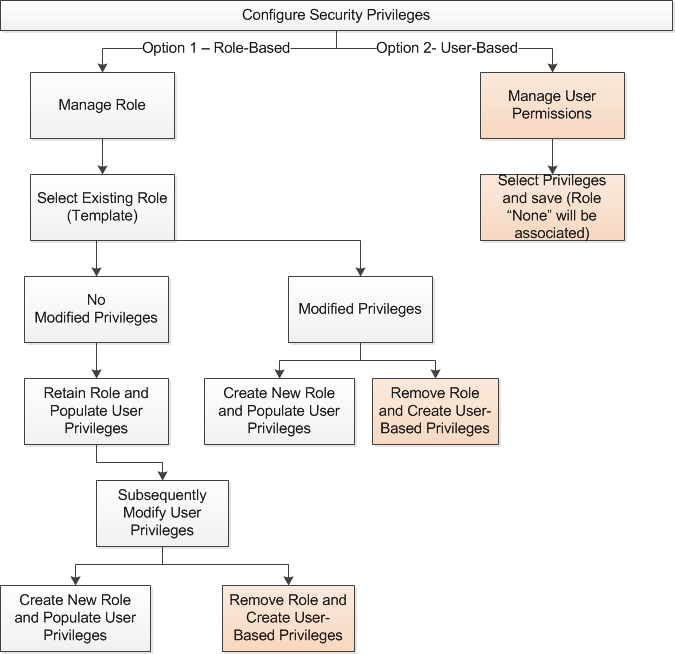
Users cannot modify the default roles. Instead, the user has the option of modifying and saving the default role into a custom new role for future use. In this case, the default roles are used as templates and accelerate creation of new roles. A user can be associated with only one role.
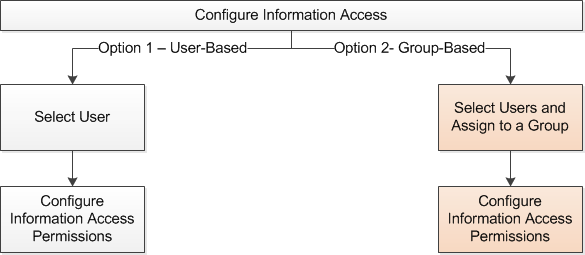
Pneuron also provides group management features within the Administration application. Any number of groups can be created and managed within the Pneuron Administration. Groups are used to organize multiple users together. This approach is analogous to organizations, which have defined operational functions and access to specific information is relevant to only certain groups within the organization. Information Access can be configured either at the User level or at the Group level. The flow for configuring information access is displayed below.
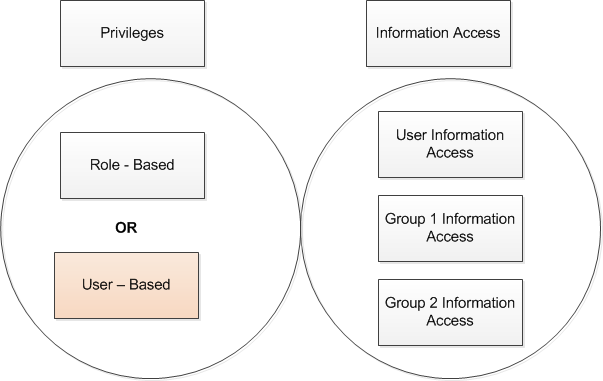
Evaluation of the configured privileges and information access is important during system access and processing. The key evaluation rules are displayed below.
-
Information access is determined by evaluating and combining across all information access assignments. For example, consider a scenario where a user is associated with multiple groups and also has individual information access assignment. One group has view for project 1 and second group has update for project 1 and user information access includes project 1 add, then the user has view, add, and update for the project at the information access level.
-
Information Access privileges that are most restrictive take precedence during evaluation. Example: User A has view, update, add, and delete privileges for projects and User A is also associated with Information Access permissions and has been granted View for a project. User A will only have view access to the assigned project.
-
New information artifacts will not be automatically granted to group user members. This applies in a situation where a user belonging to a group creates a new information access artifact (project, data source, dashboard, etc.). The user that created the information will have access. However, other members within the group will need to be assigned access through Information Access to obtain permission.