Understanding Pneuron Administration
This section describes the functions within Pneuron Administration.
General Overview
Top Navigation Functions
The following graphics and tables explain the top navigation functions of Pneuron Administration.
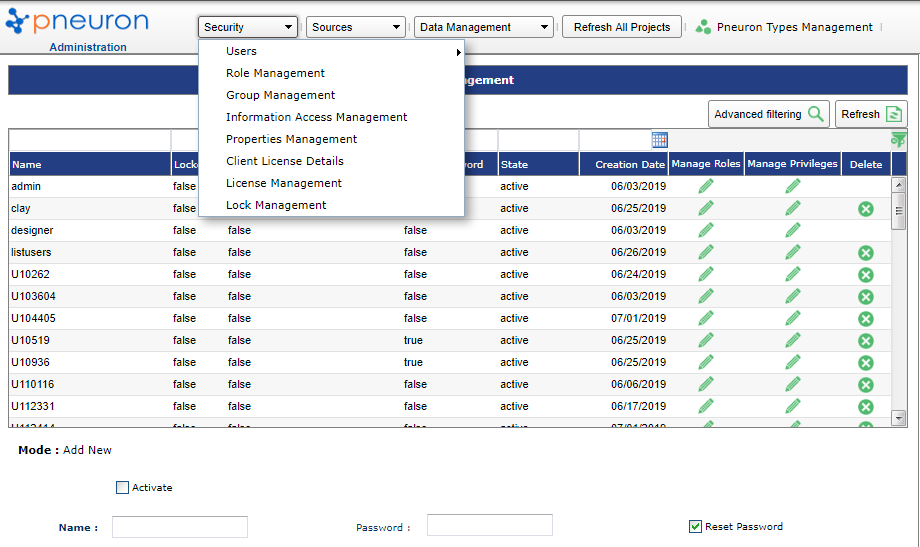
| Menu Name | Description |
|---|---|
| Users | Allows administrators to configure user accounts, including system identification and security. |
| Role Management | Allows administrators to configure Roles that apply to a user or set of users that have common security access. |
| Group Management | Allows administrators to configure Groups that associate multiple users together and enable them to be assigned to Information Access. |
| Information Access Management | Allows administrators to select and configure Users or Groups to select information access permissions to Pneuron information, resources, and artifacts (Projects, Data Sources, etc.) |
| Properties Management | Allows administrators to configure applicable properties and view properties that are read-only and not eligible for modification. |
| Client License Details | Presents Pneuron licensing information for the Pneuron applications and Pneurons and the time until expiration. |
| License Management | Allows administrators to view active logins to Pneuron modules and remove logins if needed. |
| Lock Management | Allows administrators to view projects which are open and locked for edit, and to remove locks if needed. |

| Menu Name | Description |
|---|---|
| Environment Management | Allows administrators to define additional environments for the Pneuron server(s) and networks to run. Note Deployment Manager is required in order to define additional environments. |
| Alias Management | Allows administrators to define data source connections, directory definitions, index definitions, FTP location details, HTTP URL connection details and configuration for sending SMTP mail. |
| Group Map Management | Allows administrators to define which directory or directories of files will be associated with a defined Index Directory location. |
| Sql Statement Management | Allows administrators to add, edit, and delete pre-defined queries for Pneurons. |
| Host Management | Allows administrators to add, edit, and delete hosts. |
| Hypervisor Management | Contains details of the Pneuron hosts participating in dynamic scaling in an AWS environment |
| Schedule Management | Allows administrators to schedule when directory/file indexing takes place, or manually start the index process. |
| User Variables Management | Allows administrators to add, edit and delete user variables in the system. |
| Templates Management | Allows administrators to manage templates used by File Pneurons within Pneuron Design Studio. |
| Data Format Management | Allows administrators to add, edit and delete data formats used in table widgets within Pneuron Enterprise Manager Dashboards. |
| Global Panel Management | Allows the admin user to create global panels in Design Studio that are available to all users. |

| Menu Name | Description |
|---|---|
| Durable Message Management | Allows administrators to view messages that have been stored in the durable_msg table in pneuron_config. Administrators can remove messages in this table if needed. |
| Durable Message Transfer Management | Allows administrators to view messages that have been stored in the durable_transfer_msg table in pneuron_config. Administrators can remove messages in this table if needed. |
| Notification Management | Allows administrators to view and manage available notification events within the system. |
| Notification Tag Management | Allows administrators to create, manage and associate tags for system notification events. |
| Cluster Management | Create and configure a cluster of several Pneuron servers to distribute work between using an ActiveMQ work queue and the Design Studio. |
Search an Filter
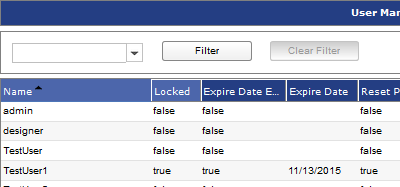
On most screens within Pneuron Administration, an Advanced filtering button enables you to search for a particular term within the current screen.

When the Advanced filtering button is clicked, the screen appears as below. Enter the search details and click Filter. To stop the filtering, click Hide advanced filtering.

Sorting Window Contents
Administrators can sort the contents within a window in ascending or descending order, by name or any of the column headings available in the current window. They can also select the columns to view, freeze the window at the currently selected list item, and configure the sort order.
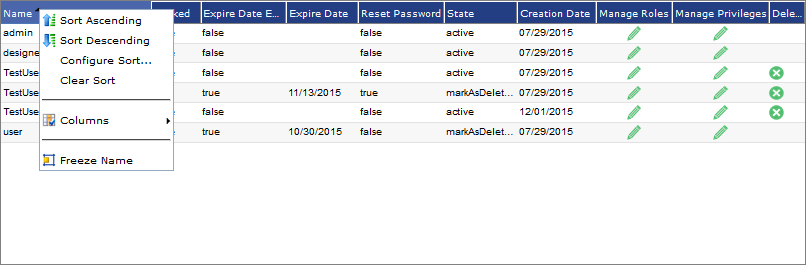
Right click the small arrow withing a column to display the Sort menu.
| Menu Name | Description |
|---|---|
| Sort Ascending / Sort Descending | Shows the current window contents in alphabetical order or reverse alphabetical order. |
| Configure Sort | Allows administrators to configure how Pneuron Administration sorts the window contents and in which order. |
| Clear Sort | Clears the sort functions previously configured. |
| Columns | Allows administrators to choose columns to display in the current window. |
| Freeze [Column] Name | Allows administrators to freeze the currently selected name column while still being able to scroll up or down within the window. |
Resizing Tables
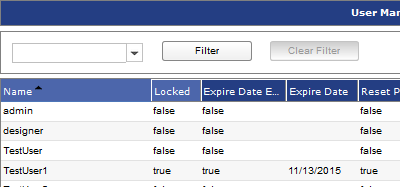
Administrators can resize the columns by moving the mouse over the column label. A double-ended white arrow will appear. Dragging the arrow to the left will decrease the width of the column and dragging it to the right will increase the width of the column.
Mouse over column separator and drag to the left to reduce column width and right to increase column width.
A column can be moved within a table by dragging it to the desired location in the row of column headers.
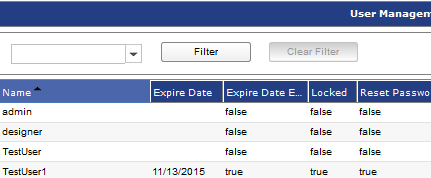
Configuring the sort feature
Administrators can configure complex sort orders to visualize the contents displayed in the current window. For example, administrators can sort all names in the current window first by name in ascending order, and then by value in descending order. This option is available when a user clicks Configure Sort in the Sort menu.
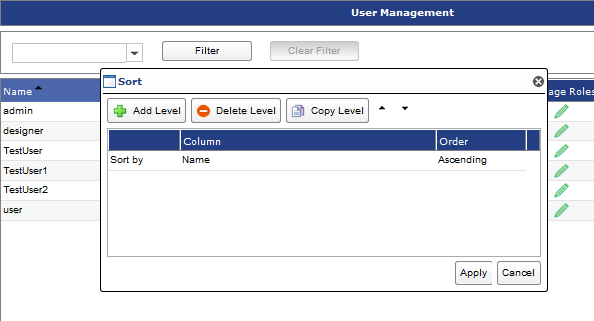
Administrators can add or delete sort levels by clicking the respective Add Level and Delete Level buttons. Users can use the Copy Level button to copy a sorting property to a new line. Users can also use the up and down arrows next to the Copy Level button to change the order in which the window list is sorted. After completing the entries in the sort window, users have to click on the Apply button to apply the sorting configurations.